 " id="k8-modal-content" alt="modal">
Customer favorits
Goal
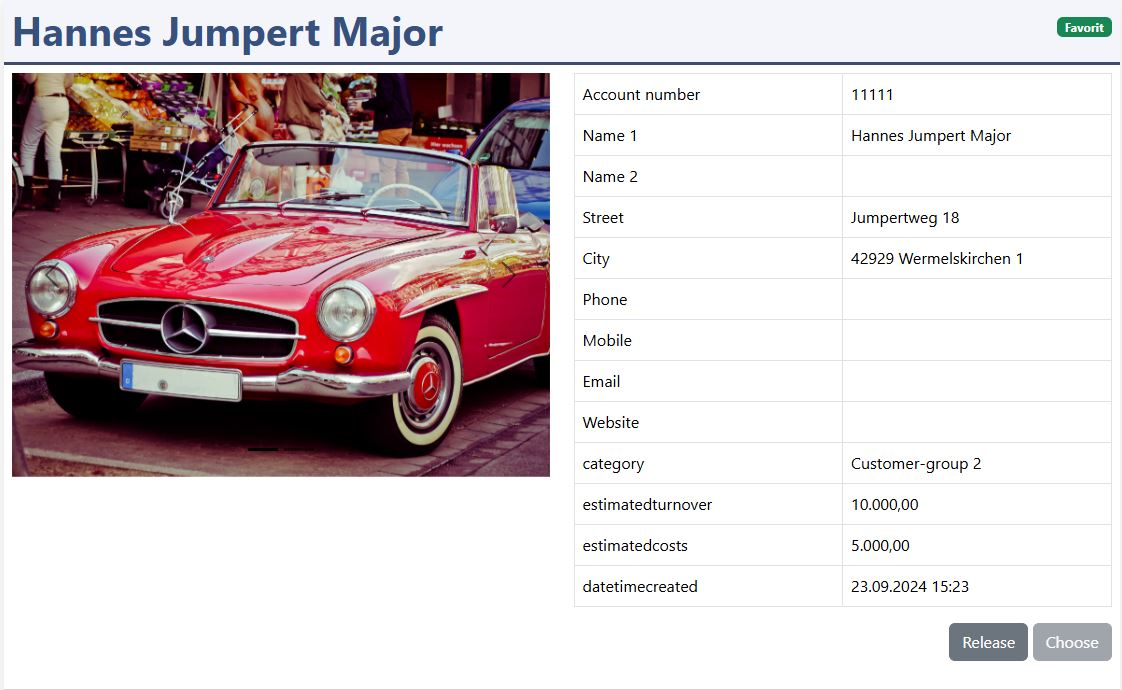
On the customer detail page every user can choose his favorit customer. Therefore a second table is necessary. By choosing the customer the userID and the accountID are written in this table. By releasing the customer the record is deleted. The green "Favorit" badge is displayed in the title line of catalog and detail page.
The favorit element:
- create a new table "exnotes" for the favorit
- generate a new datadefinition out of it
Following customer elements must be adapted:
- the SQL is joined to the new "exnotes" table
- HTML of the customer catalog record
- HTML of the customer detail record
- JavaScript for 2 buttons added
Support is available by discord: K8 Web Kit
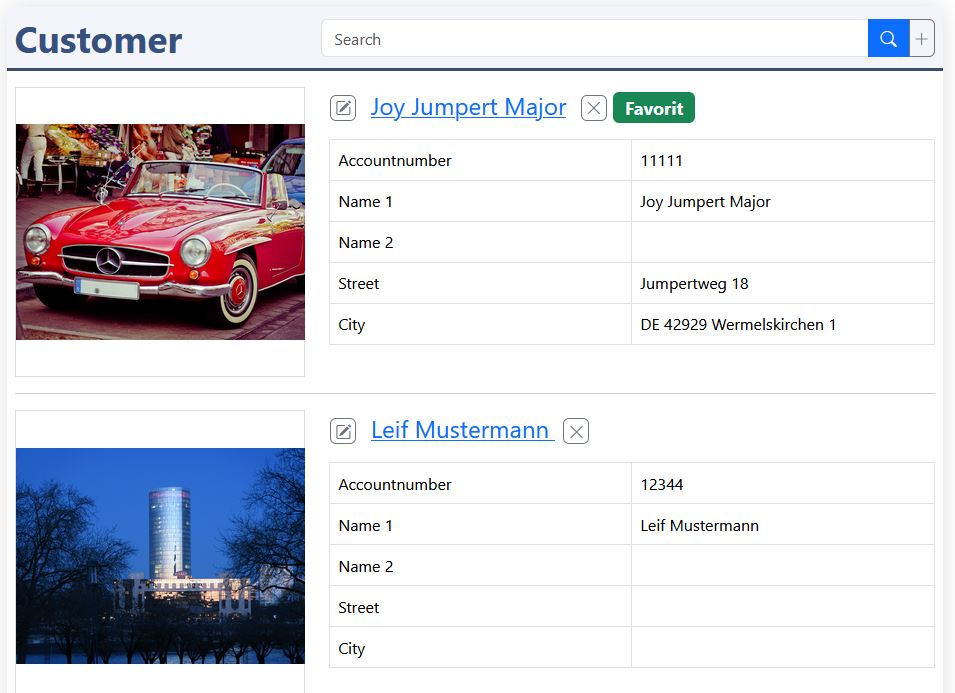
The favorit badge is also added in the catalog
Prerequisites
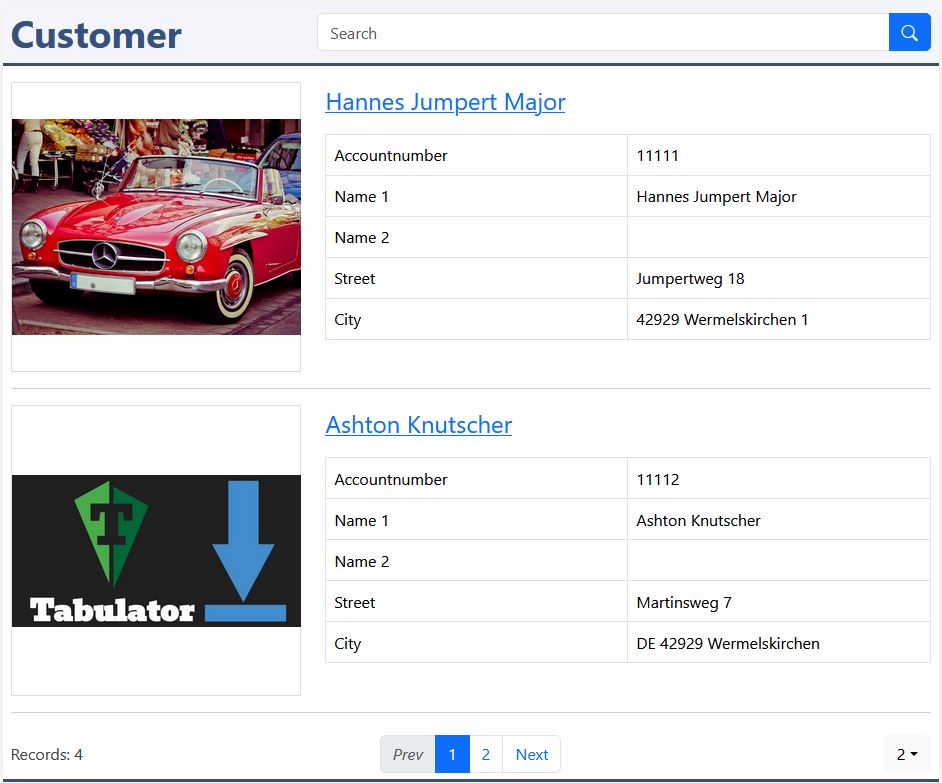
Existing prerequisites for your test:
- precedent exercise: customer catalog
Instructions for Elements online
New datadefinition (exnotes)
Create a new datadefinition:
- datadefID: enter a new datadefID (exnotes)
- name: the displayed name
- table:
(exnotes)
Save
Attention, it's not saved by a red box at the window bottom line! Only by the green "saved" message, you can continue.
Please have a look to the documentation of elements online.
You need to be registerted and logged in. Open "elements online" in your environement "Admin / elements online".
Table structure
Copy the columns
Copy the columns here; goto elements online; delete the default columns; click in the tabulator columns; paste with ctrl-v this columns into the table.
Save table
Save your table. It will be created in your database.
Create datadefID
K8 Web Kit generates the datadefinition with the structure of the table, the tabulator list and the form elements.
excustomer: Sql statement by sql_additionals
excustomers.json (masterdata):
Choose your excustomer datadefintion, file: excustomer.json.
sql_orderby
The order should be by the customer name1.
Adapt sql_additionals:
in "select" add 2 columns:
- notesID
- note (0=no favorit, 1=favorit)
replace the column:
- searchcolumn: 'Favorit' is added
in "from" add element:
- exnotes
- expression: (join to table: exnotes)
Save
Attention, it's not saved by a red box at the window bottom line! Only by the green "saved" message, you can continue.
Adapt the catalog
Change the file excustomer_catalog_record.html!
This is an excerpt:
The title row is extended:
- behind the {{control_delete}} the badge is appended; add the yellow line.
Save
Attention, it's not saved by a red box at the window bottom line! Only by the green "saved" message, you can continue.
The detail
excustomer_detail_record.html, excerpt:
The title row is extended:
- add the yellow line in the right section of the title row.
excustomer_detail_record.html, excerpt:
Replace the button behind {{headdescription}}:
- add the yellow lines.
Save
Attention, it's not saved by a red box at the window bottom line! Only by the green "saved" message, you can continue.
excustomers: adapt the data definition
excustomers.json:
settingsadditional
Replace "exnotes" with your notes datadefinition.
backend
Replace in table exnotes with:
- your exnotes table name
If a customer is deleted, the exnotes are also deleted.
Insert this lines in your excustomer data definition.
Save
Attention, it's not saved by a red box at the window bottom line! Only by the green "saved" message, you can continue.
JavaScript excustomer
Extend excustomer_head_end.js:
please do:
- insert this code at the top of the file
- remove the block "detail button" at the end of the file
Attention: replace "settingsexcustomer3" with your variable, example:
- settingsexcustomer
Save
Attention, it's not saved by a red box at the window bottom line! Only by the green "saved" message, you can continue.
Explanation
Only when a user is logged in (userID>0) one of the buttons Choose and Release can be clicked.
The function setDisabled(..) checks, if notesID is 0 or >0, and disables or enables the button. An eventlistener for click is added to each button.
The variable for the favorit object is:
- settingsexnotes: exchange it with your name:
- settings<your datadefID>
Choose
- with postData(..) the dat_notes.accountID is saved to the server
- "obj" is send back:
- by success (obj.bok=true) the current data of the account record is changed to:
- dat.notesID=obj.dat.ID;
- dat.note=1;
- ..show(): shows the badge
- by success (obj.bok=true) the current data of the account record is changed to:
Release
- with postData(..) the notesID is send with the parameter name 'keyvalue' to the server for delition
- "obj" is send back:
- by success (obj.bok=true) the current data of the account record is changed to:
- dat.notesID=0;
- dat.note=0;
- ..hide(): shows the badge
- by success (obj.bok=true) the current data of the account record is changed to: