 " id="k8-modal-content" alt="modal">
Customer form
Goal
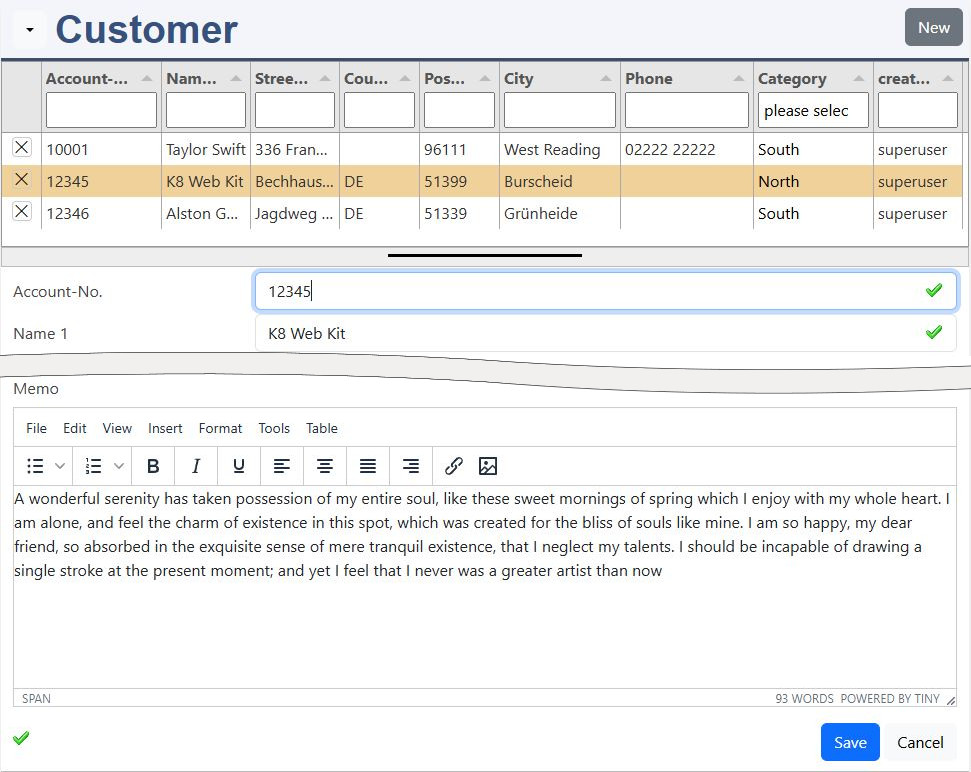
Develope a customer form.
The basic customer table is displayed below.
You should create the following elements:
- master data form for customers
With K8 Web Kit it is easy to generate the basic elements. Creating form interactions to other tables can be configured by documentations and examples.
Support is available by discord: K8 Web Kit
Prerequisites
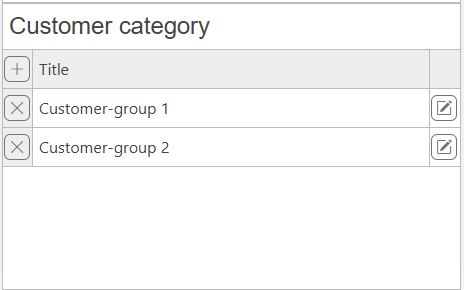
Existing prerequisites for your test:
- Attention: choose your developement environement:
- internal name: excustomer_group
- definition: Group definition
- form: User groups
Instructions for Elements online
New datadefinition
Create a new datadefinition:
- datadefID: create a new datadefID (excustomer)
- name: the displayed name
- table: choose a new table name (excustomer)
- head title column: name1
- head description column: headdescription
Attention: it's not saved by a red box at the window bottom line! Only by the green "saved" message, you can continue.
Please have a look to the documentation of elements online.
You need to be registerted and logged in. Open "elements online" in your environement "Admin / elements online".
Please have a look to the documentation.
Table structure
Copy the columns
Copy the columns here; goto elements online; delete the default columns; click in the tabulator columns; paste with ctrl-v this columns into the table.
Save table
Save your table. It will be created in your database.
Create datadefID
K8 Web Kit generates the datadefinition with the structure of the table, the tabulator list and the form elements.
Assistant
The assistant helps to adopte the corresponding form in a dialog.
Form elements with the Assistant
| Field / Column | Dialog | Property | Value |
|---|---|---|---|
| accountnumber | Attributes | required | true |
| pattern | ^\d{5}$ | ||
| title | please enter 5 numerical digits | ||
| name1 | Attributes | required | true |
| country | Main | tag Name | select |
| Options | Text | ||
| Text | |||
| DE | |||
| FR | |||
| UK | |||
| Main | Type | ||
| fax | Main | Type | hidden |
| Tabulator add | ,"visible":false | ||
| Main | Type | hidden | |
| Tabulator add | ,"visible":false | ||
| categoryID | Main | Field type | 141: usergroup |
| Main | User group | excustomer_category | |
| representativeID | Main | active | no |
| Tabulator | empty | ||
| headdescription | Main | tag Name | textarea |
| memo | Main | Field type | 152: tinymce large |
| Tabulator add | ,"visible":false |
The Assistant can be started in elements online, Folder menu: button: Assistant.
The definition and columns are build.
Or from the menu: Elements online Form Assistant.
If the datadefinition does not exist, enter your datadefID and Save it. Then press the button Get datadefID. Your table columns are listed in the Form elements (docu).
The categoryID is joined to foreign tables:
- the "select" gets the data from the k8groups table.
Column description:
- an editor is added, which allows to make notes and links in a well formated presentation.
Tabulator
please improve the tabulator list by changing:
- width
Change the label according to your needs.
Update + Open
The datadefinition is updated and the masterdata form is opened.
Tabulator
tabulator, basics
This is a part of the customer tabulator definition (string columns):
The most often used column properties are:
- title - Required This is the title that will be displayed in the header for this column
- field - Required (not required in icon/button columns) this is the key for this column in the data array
- headerfilter - true for more details look in the tabulator documentation
- visible - (boolean, default - true) determines if the column is visible
- hozAlign - sets the horizontal text alignment for this column (left|center|right)
- headerHozAlign - sets the horizontal text alignment for this columns header title (left|center|right)
- width - sets the width of this column, this can be set in pixels or as a percentage of total table width (if not set the system will determine the best)
- minWidth - sets the min width of this column, this should be set in pixels
- formatter - Tabulator offers a wide range of formatters for strings, numbers, dates, ...
- formatterParams - additional parameters you can pass to the formatter
For more details look to:
Columns can easily removed or added. if desired you change the order of the columns. If you extend the sql-statement, you can easily add the columns here.
tabulator, local formatting
Example for date and number:
The formatting of dates and numbers depends on the settings of the clients web browser. K8 Web Kit reads this on the first page request and sets it in the session variables. This are the corresponding JavaScript variables:
- GLOBALS_decimal_point
- GLOBALS_thousands_sep
- GLOBALS_tabulatordateformat
- GLOBALS_tabulatordatetimeformat
- GLOBALS_tabulatortimeformat
The date and time formats follow the luxon syntax, date time format:
- 'dd.MM.yyyy HH:mm'