
Master + tabulator child
Goal of this example is to show the relations of the invoice data model and how they are realized with the K8 Web Kit elements.
The invoices dialog is displayed here as a master data form. The invoice list at the top (tabulator) list, filters and sorts the invoices. The invoice form allows to enter the date and to choose a customer (datalist). With the drop down the customer dialog is opened. The item element is a tabulator sub element. It's a it is a standalone data definition (exinvoiceitems).
The data model (ERM) consist out of this tables:
- exinvoices
- exinvoiceitems
- excustomer
- exitems
Thanks to datalist fields, the relations to the foreign tables are done:
- name1 to excustomer by accountID
- componentnumber to exitems by componentID
- text1 to exitems by componentID
The "sub tabulator" field allows to embed the invoice items element (exinvoiceitems) in the invoice form.
The calculations of the "sub tabulator" are available in the form:
- <identifier>_top_<column>
- <identifier>_bottom_<column>
The ERM
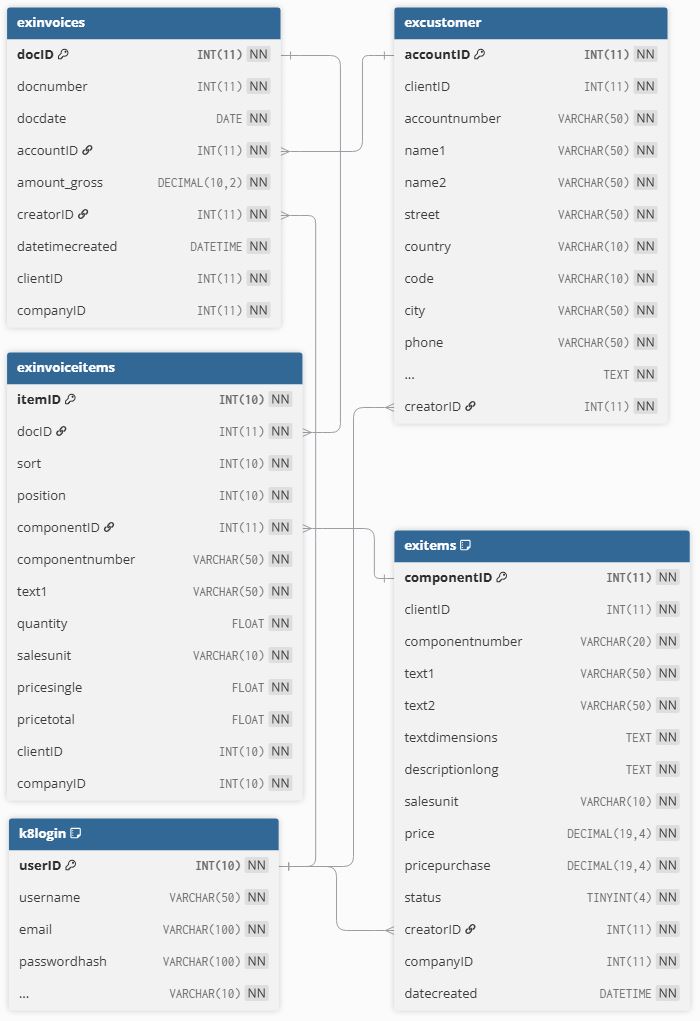
The tables with the important columns for the entity relations:
exinvoices
- docID: primary key
- docnumber: datalistcolumn
- joined to excustomer:
- accountID: both table are joined by this ID
- name1: additional column correspond to
- excustomer.name1: datalistcolumn
- joined to k8login:
- joined on exinvoices.creatorID=k8login.userID
- creatorname: additional column correspond to
- k8login.username: datalistcolumn
exinvoiceitems
- itemID: primary key
- docID: master key
- joined to exitems
- componentID: both tabels are joined by this ID
- componentnumer: correspond to exitems.componentnumber (datalistcolumn of datadefID exitemsnumbers)
- text1: correspond to exitems.text1 (datalistcolumn of datadefID exitems)
- no creatorID, because the rights depend on the master table exinvoices
excustomer
- acoountID: primary key
- name1: datalistcolumn
- creatorID: joined to k8login
exitems
- componentID: primary key
- compentnumber: datalistcolumn by datadefID: exitemsnumbers
- text1: datalistcolumn by datadefID: exitems
- creatorID: joined to k8login
k8login
- userID: primary key
- username: datalistcolumn
- k8login is basic for the roles and the rights of the user
The items
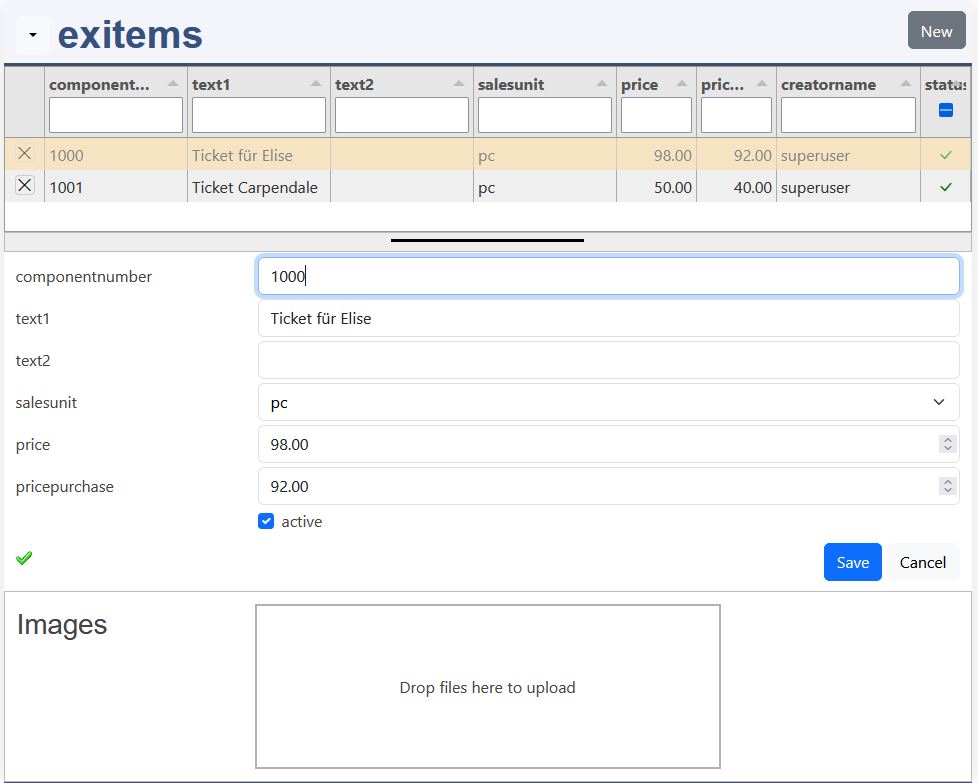
The items are the basic for the invoice positions.
The compnentID is the primary key of the item table. It is hidden and never changes.
The item number and text1 are both datalist columns. They should be unique (additional tool necessary).
The following columns are copied into the invoice:
- componentnumber
- text1
- salesunit
- price
- text1
The salesunit is a html select tag with an option list.
The status / active!!! allows to deactivate old items. They als can no more inserted in an invoice.
The customers
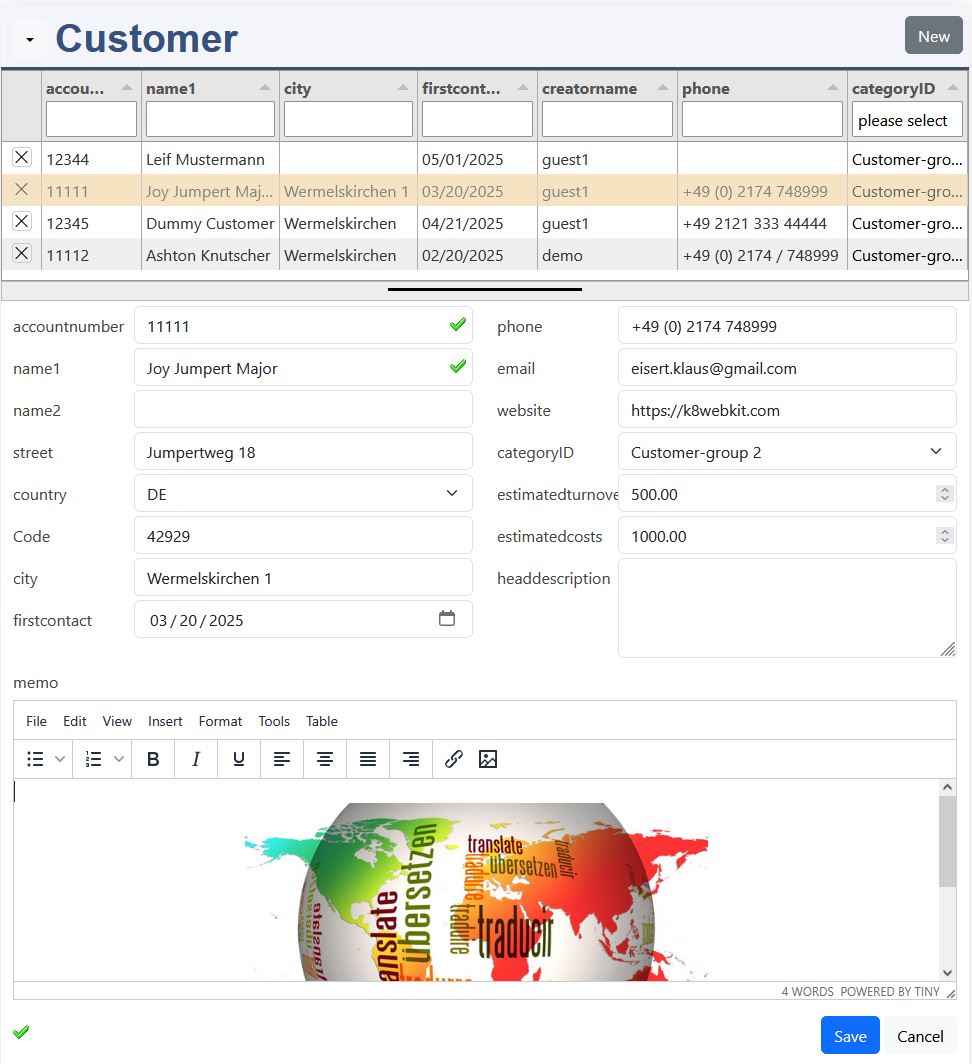
Important fields of the excustomer table are:
- accountID: prirmary key
- accountnumber (not used)
- name1: displaycolumn
The invoice items
form and tabulator elements:
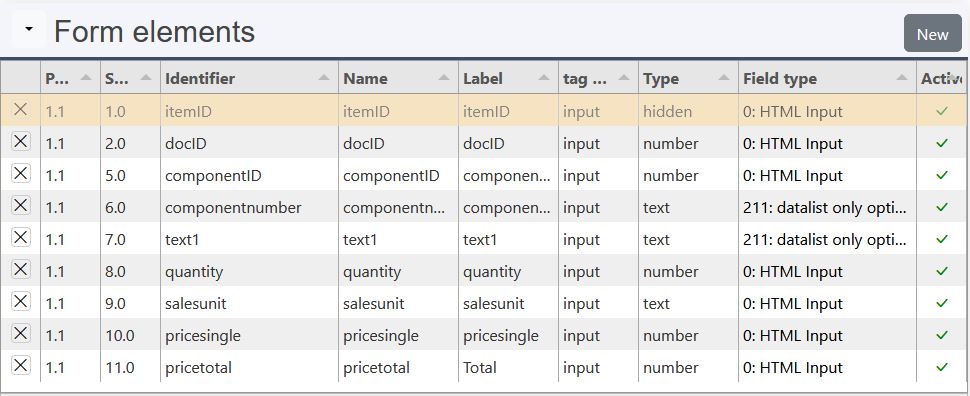
Navigation (exinvoiceitems.json)
- tabulator
- tabEndNewRow: true
automatically adds a new row at the end
- tabEndNewRow: true
Configuration and events, exinvoiceitems:
- compnentnumber, datalist with:
- datadefID: exitemsnumbers
- onlyoptions: true
- text1, datalist with:
- datadefID: exitems
- onlyoptions: true
- quantity, price single, event change (JavaScript)
- calculate price pricetotal
- pricetotal
- editor false
- bottomCalc
The pricetotal in the bottom calculation is copied to the column amount_gross in the invoice. This are the events:
- pricetotal calculation in the row
- delition of a row
The invoices, form assistant
fieldtypeID: 401 tabulator sub, configuration:

Configuration of the invoice form elements:
- docnumber: disabled
- it's set before save by PHP
- docdate: defaultvalue
- JavaScript gets the current date and sets it as defaultvalue
- name1: datalist
- reads the name1 from customer datalistcolumn and sets the accountID
- items: tabulator element
- datadefID: exinvoiceitems
key: itemID
masterkey: docID
- datadefID: exinvoiceitems
- amount_gross: disabled
- it's displayed here for developer reasons
- it's set by the update function of the tabulator element
Formulas
datadefinition formulas:
Formulas are entered in the form assistant:
formulas are supported by elements like:
- forms
- listedit
They are stored in the datadefinition like to the right. Fields with formulas need to be saved in the table, because the calculation is only made after entering the values!
Use formulas in JavaScript
datadefinition formulas:
The function to calculate the formulas is:
- k8.formulasCalculate(options)
The paramters are:
- formulas[]: array of the formulas
- dat: object with pair values for the fields
- field: the changed field
Format rules (conditional formatting)
datadefinition formatrules:
A formatrule sets a css class on a field depending on its current value - e.g. a negative difference is shown in red.
- field: the field to style (k8form field name / tabulator column field)
- rules[]: checked top to bottom, the first matching rule wins
- type: =, !=, >, >=, <, <=, like (same operators as filters)
- value: the value to compare against
- class: the css class to add (e.g. a bootstrap class), no matching rule removes all classes from the previous rules again
formatrules apply independently of formulas - they also work on a plain, non-calculated field.
Use format rules in JavaScript
applying a formatrule to a form field or a tabulator cell:
The function to apply the formatrules is:
- k8.formulasApplyFormat(options)
The parameters are:
- formatrules[]: array of the formatrules
- dat: object with pair values for the fields
- el_form: the form to style a field in (optional)
- row: the tabulator row to style a cell in (optional)
It's called automatically:
- right after every k8.formulasCalculate() call, with the same dat/el_form/row
- when a record is displayed in the form (initial load)
- by the masterdata list's own rowFormatter, for every row it renders
Changement of tabulator list (developer)
datadefinition formulas:
After changing the table list form, the values must of the main form must be set:
- detect change of the list list (fields or lines)
- use ot tabulator calculations (sum / avg of a column)
- set the desired values in the form
- Fire a new event "changeTab" in the form
- The form event takes the values and calculates depending formulas. The tabulator fields have this term:
{{id_bottom_column}}- id: identifier of the tabulator element
- top/bottom: the value from top or bottom calcualtion of tabulator
- column: the name of the tabulator column
Calculation in a separate box: VAT box

Sometimes easy formulas are not sufficient. Some complex calculation make it necessary to calculate and display values with JavaScript. The VAT box in the bottom of the form is an additional element. The data is calculated and displayed by the function:
- calculateVat(data)
The callbacks of the tabulator list are:
- on_cellEditint(cell)
- on_cellEdited(cell)
- on_rowDeleted(row)
- on_rowAdded(row) under construction!
Example:
- esinvoices
Add an Element for calculated values
scheme of the process:
You insert a tabulator list into your form. This list is filled in manually. The entries can contain scientific or business data. Calculations based on the list entries must be added to the top or bottom of the form. For this, you need to select and design another element. This element must be inserted when the form is created and is updated by various events.
Callbacks:
- main form
- cbCreateStructure
- cbAfterNew
- cbAfterLoad
- change of input data
- tabulator list
- new line
- delete line
- change of data
Calculation of the data with the function calculateVat().
Styling of the list (template)
The block of the form with the tabulator sub element (excerpt of dplocation.json):
The template of the block
The list is placed in a block of the container layout. The block has a template and the fields:
fieldsetwith alegend: a frame with the title of the list{{innerHTML}}: the place of the fields of the block, here the tabulator sub element (fieldtype 401)<style>: the look of the list, see below
The list is a part of the form: no headline, no shadow, a plain table with a thin border. Use the template for every tabulator sub element, change the class name (dp-wpbox) and the title.
The css of the template:
.headline: the headline of the list is hidden, the legend is the title.maindata: no border, no background, no shadow.tabulator: white, thin border, rounded corners.tabulator-header,.tabulator-row: white, thin lines between the rows and the columns.tabulator-row:hover: light blue row under the mouse