 " id="k8-modal-content" alt="modal">
K8 Web Kit supports Formulas in form fields and tables. Some Excel calculation sheets can be turned into a database-based web application. Instead of maintaining data across multiple worksheets, the calculation works directly with centrally stored business data. Forms, database records, table functions and formulas are combined in one interface.
Data Structure with Child Tables
A structured database model can use related child tables instead of storing everything in one worksheet. Documents, line items and related records remain linked and consistent.
Table Calculations
Tabulator provides functions such as Count, Sum, Average, Min and Max directly in the table. Calculations can also be combined with grouping.
Formulas in Form Fields
Form fields can calculate values from other fields in the current record. JavaScript formulas support both simple calculations and individual business logic.
Columns and Fields Formatting
Columns and form fields can use different colors to distinguish information or highlight important values. Colors can also be assigned dynamically.
Conditional Formatting and Format Rules
Values can be formatted automatically according to defined rules, making important results and deviations immediately visible.
Traffic Light Indicators
A dedicated column can display status using green, yellow and red indicators. This provides an immediate overview of targets, limits and warnings.
Printing the Calculation Sheet
The complete calculation sheet can be printed, including the K8 form areas above and below the Tabulator table. Grouped data, calculations and formatting remain part of the document.
Data Structure with Child Tables
The operation center to create data definitions is Elements online in the Admin menu.
This is the table structure:
- Master: erflight
- Master: erflightcargo
The flightID is joining both.
Table Calculations
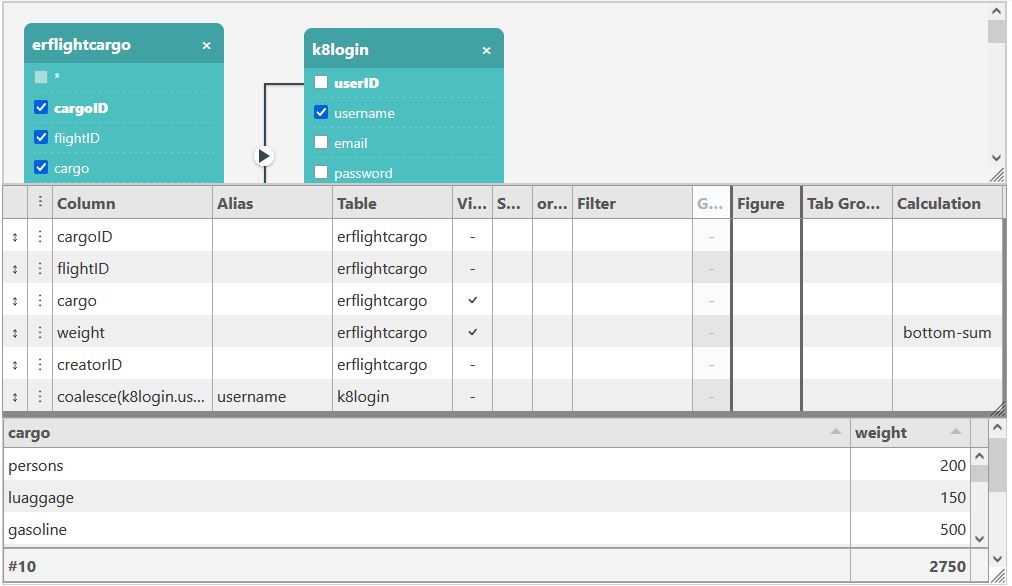
The SQL Assistant does more than create SQL statements. It can also define Tabulator groups and calculations for the displayed data.
Tabulator Groups
Groups allow records to be structured and displayed according to a selected field. This makes larger result sets easier to understand and evaluate.
Tabulator calculations
Calculations can be performed directly in the Tabulator table. For example, in the erflightcargo table, the values in the weight column are automatically summed.
For more details, please have a look to:
Formulas in Form Fields
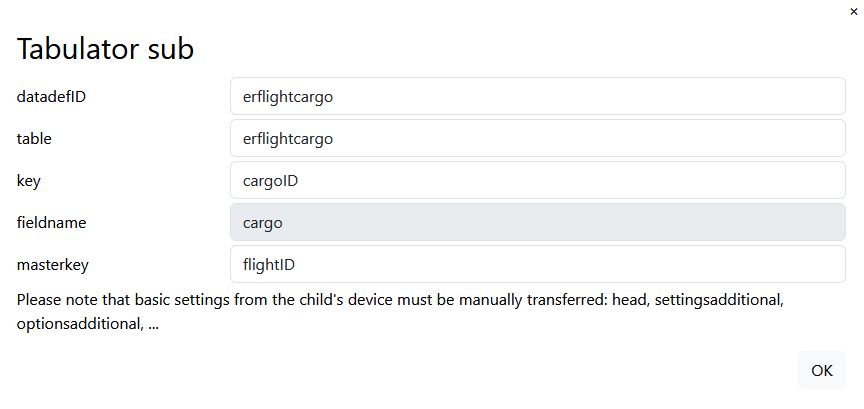
Insert the table element with calculation in the form.
Form Assitant / Field / New:
- identifier: cargo
- fieldtypeID: 401 tabulator
It's placed with the drag handler behind the "max weight"
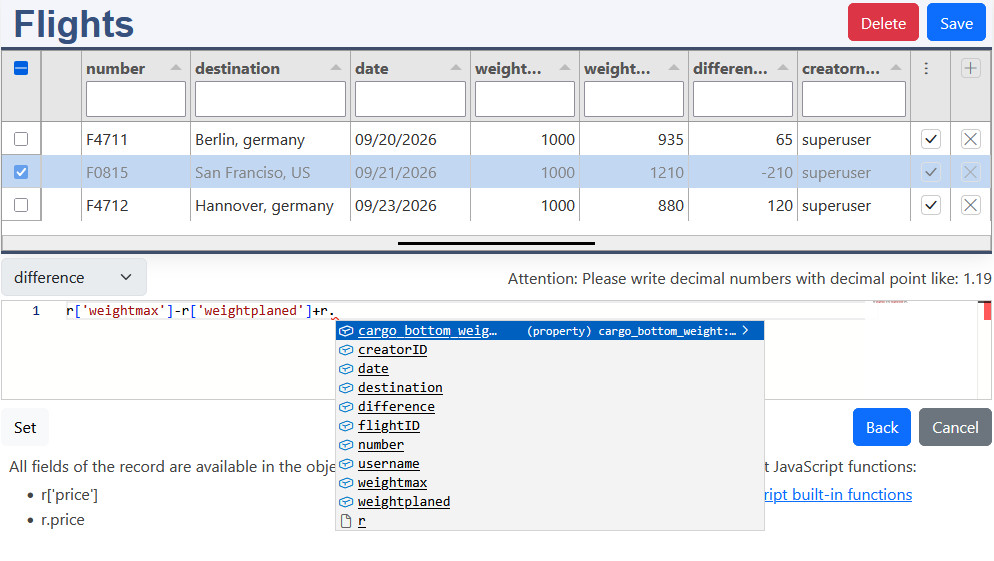
Form Assitant / Field / Formulas
Available record fields are shown with IntelliSense. Fields can be entered using the r. notation, while available JavaScript functions are also suggested automatically. This makes it easier to discover the available fields and functions while writing the formula.
The Monaco editor provides syntax highlighting, autocomplete and error detection. Syntax errors are identified while the formula is being edited, helping to find mistakes before the formula is executed.
With Set, the formula is executed for the selected records and the calculated result is written into the corresponding column. This makes it possible to test and apply a calculation directly to existing data.
With Accept, the formula is saved as part of the form field configuration. The calculation can then be used automatically whenever the form is displayed or the relevant data is recalculated.
Columns and Fields Formatting
CSS file: erflight/erflight.css
CSS (Cascading Style Sheets) is responsible for the visual design and formatting of websites and web applications.
CSS defines, for example:
- colors and backgrounds
- fonts and text formatting
- spacing and sizes
- borders and shadows
- positioning and layout
- responsive behavior for different screen sizes
With the <style> attribute it can be directly defined in HTML tags. Mostly it is stored in CSS files and added by the class attribute to HTML tags. Like in this example the CSS file erflight.css is used.
datadefintion: erflight/erflight.json
head
The <link> element loads the CSS file and applies its styles to the webpage.
tabulator cssClass
The cssClass property binds the CSS class k8-bg-color to the Tabulator column.
Tabulator applies the cssClass also to the column's cell in the calculation row. The additional class k8-calc-plain resets the formatting there (see .tabulator-calcs .k8-calc-plain in erflight.css), so only the data rows are highlighted.
k8form form styling
In the K8 Form definition, the fieldclass_add property adds CSS classes to the input field:
- text-end: aligns the content to the right (bootstrap 5)
- k8-bg-color: format definition from erflight.css
Conditional Formatting and Format Rules
A formatrule sets a css class (and optionally a color) on a field depending on its current value.
- field: the field to style
- rules[]: checked top to bottom, the first matching rule wins
- type: =, !=, >, >=, <, <=, like
- class: css class added to the form field / tabulator cell (default for both)
- classform / classtabulator: optional, override class just for the form field / just for the tabulator cell
- color: optional, used by a dedicated traffic light column (see below)
formatrules work independently of formulas - a plain, non-calculated field can be styled too.
k8.formulasApplyFormat(options) applies the formatrules. It's called automatically:
- right after every k8.formulasCalculate() call
- when a record is displayed in the form
- by the masterdata list's own rowFormatter, for every row it renders
Traffic Light Indicators
Tabulator's built-in traffic formatter only colors a dot by its position within a fixed min/max range - it can't use arbitrary conditions.
k8traffic is a custom formatter that reuses the same formatrules instead: it looks up the rule matching formatterParams.field (or the column's own field), finds the first matching rule and renders a dot in that rule's color.
_ampel needs no real database column - the formatter reads the referenced field's value from the same row.
Printing the Calculation Sheet
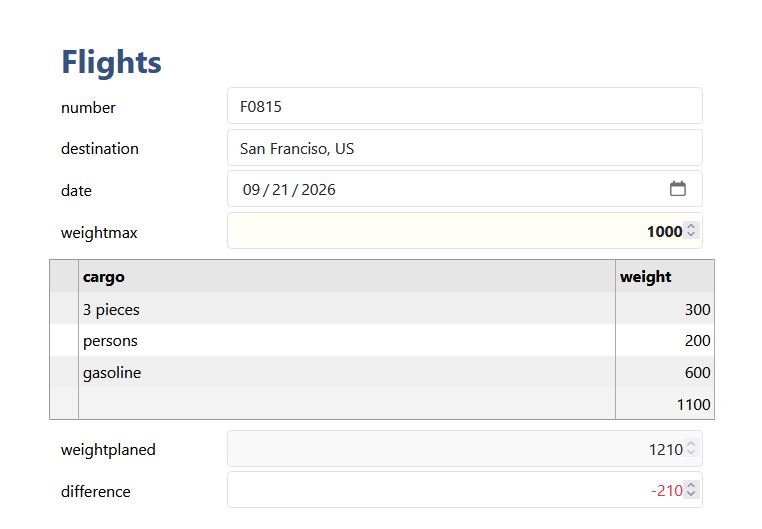
The calculation is printed alike to the style it is displayed.
The print dialog is started.
Save as PDF
dialog options:
- Print headers and footers
- Print background