
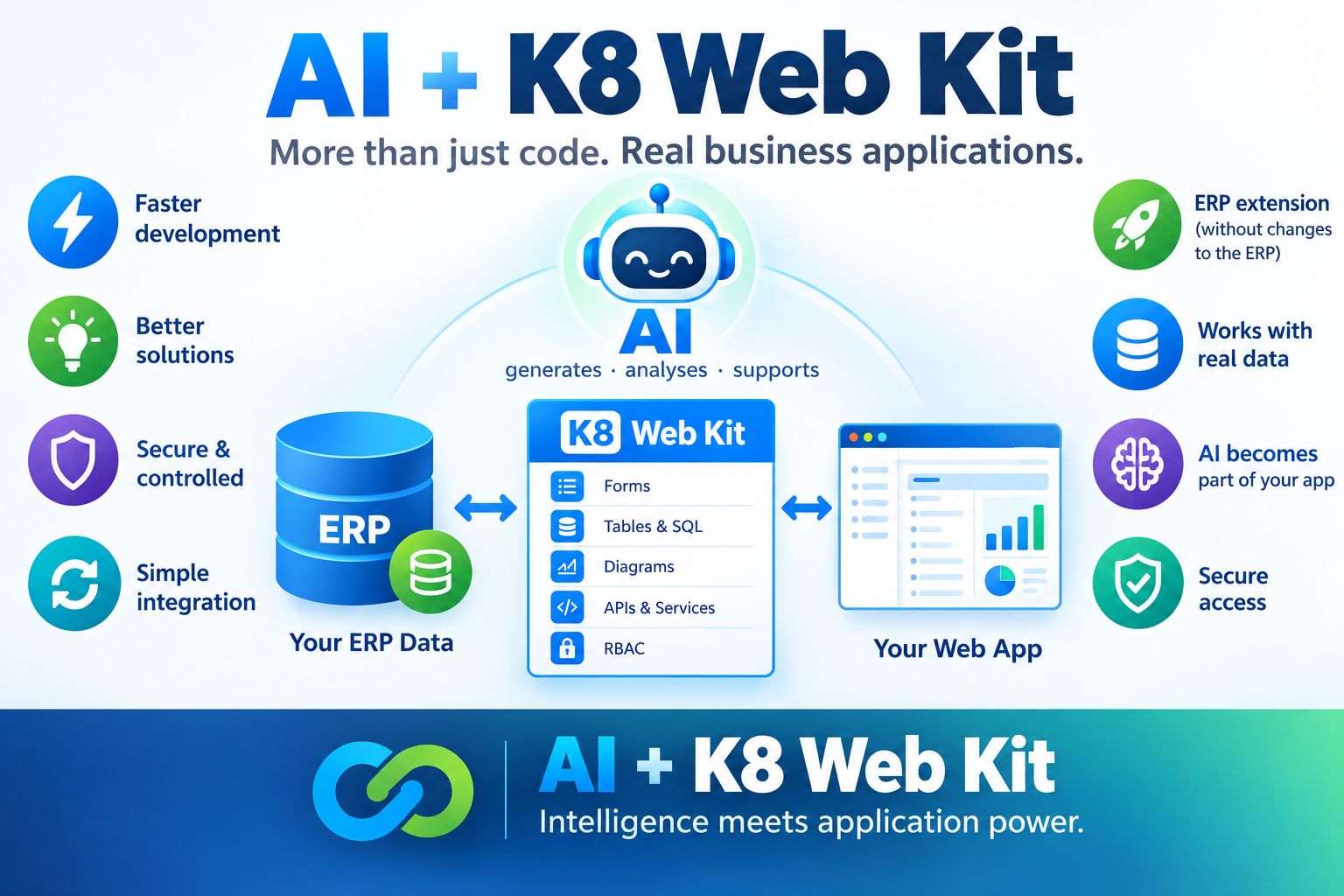
Advantages of K8 Web Kit and AI
- AI generates — K8 executes: AI creates code and logic; K8 turns it into working applications.
- K8 Web Kit provides the technical foundation: Build data-driven web applications with user management, data access, data security and powerful web elements.
- Rapid application development: AI helps create forms, SQL, calculations, diagrams and application logic.
- ERP extension without modification: Build new functionality around the ERP without changing the ERP itself.
- Controlled data access: Authentication, RBAC and defined access paths keep data access secure and controlled.
- One complete workflow: K8 connects business data → application logic → user interface.
- AI-assisted maintenance: AI can analyse bugs and propose changes within the existing K8 application structure.
Connect claude code to your K8 Web Kit
Preparations
- login to your K8 Web site: <website> as superuser
- menu / member / my data
- create Api Key
Connections from your local AI
- to K8 Web Kit / MCP: https://k8webkit.com/mcp/
- URL of your K8 Web Kit installation: https://<website>
- open the browser pane, enter your website and login as superuser
- tell the AI your API Key
Optional drive
You can connect a drive letter to your webspace. In this case tell it the AI. How it works: Connect web space with drive letter.
A connection from your local AI to K8 Web Kit allows you to have a powerful AI driven developement.
How to prompt
Please create a new project at <website>.
It's about <website>, <description>.
First, please create a data model.
Generate the data definitions and elements.
Consider the different fieldtypeIDs in forms.
Populate the tables with sample data.
Search the internet for sample images and upload them.
Create a menu.
The right prompting brings great results.
The Prototype
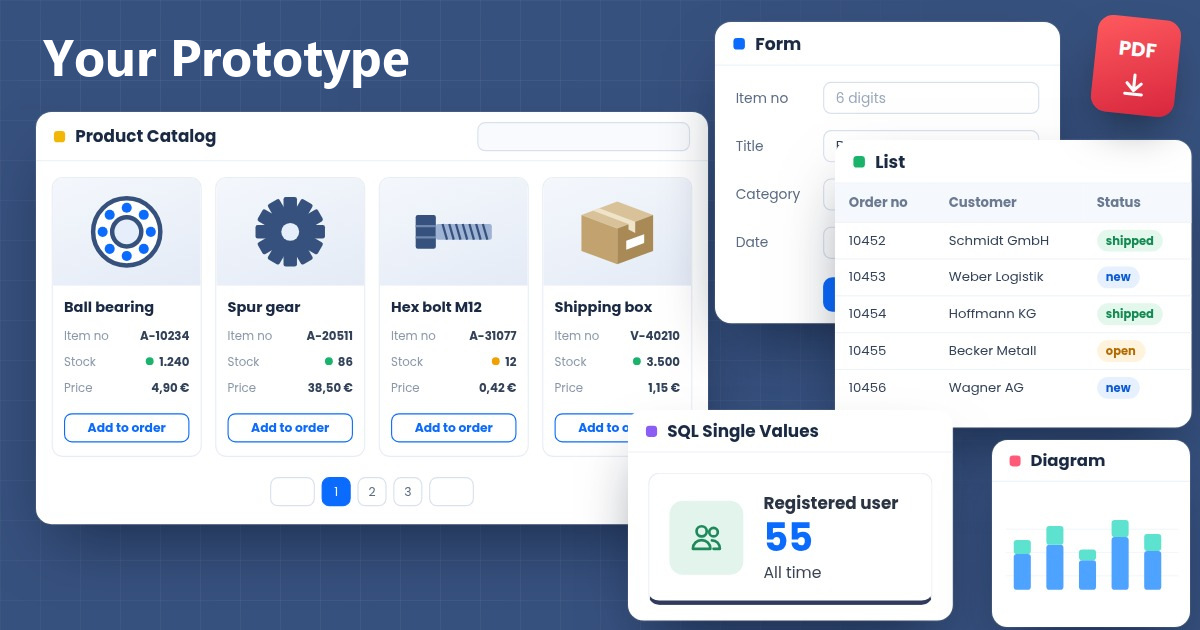
You get:
- the datastructure
- the elements
- example data
- images, if desired
- a menu
Now you can check it out and optimize the elements and details. New Prototypes even created by AI can be buggy. The big help: AI can find and fix errors:
- post the website url
- tell about the action
- post the error message
You can change elements using simple voice commands.
Connect web space with drive letter
If your installation runs on a web space and not on your computer, the AI cannot open its folder. Connect the web space as a drive, e.g. Z:. For the AI it is then a normal folder: tell it the drive, e.g. Z:/, and it works with the files like in a local installation.
First find out, which access your hosting offers (customer area of the provider):
- WebDAV – built into Windows, no extra program is needed.
- SFTP / SSH – needs WinFsp and SSHFS-Win (both free and open source).
WebDAV (Windows)
The * asks for the password, so it is not part of the command. The second line disconnects the drive.
SFTP / SSH with SSHFS-Win
- Install WinFsp first, then SSHFS-Win.
- Test the access, e.g. with
ssh <user>@<host>(PuTTY works too). - Connect the drive: in the Explorer use "Map network drive" with the address below, or use the command line:
The address has three forms:
\\sshfs\<user>@<host>\<folder>– the folder is relative to the home directory of the user.\\sshfs.r\<user>@<host>\<folder>– the folder is relative to the root of the server.\\sshfs.k\<user>@<host>\<folder>– logs in with your SSH key instead of a password (recommended).
Linux and macOS
Use sshfs (macOS needs macFUSE):
Similar programs are rclone, SFTP Net Drive, RaiDrive and Mountain Duck.
Please note:
- The drive is the live site: every change is effective for the visitors at once. Better work on a copy (test system) and copy the result afterwards.
- A drive on a web space is slower. Let the AI open only your project folder, not the whole installation with
tinymce,assetsand so on. - The AI can read and write the files of the drive, but it cannot run PHP there. Test in the browser.
- Never write a password into the chat or into
CLAUDE.md. Enter it only where it is asked. Create an own user for the access, which may only use the project folder. - Disconnect the drive when you are ready.